Programming and passthru delays
Events
The driver has ten events, each with a name you choose. An alarm or timer raises the events ticked under When it goes off. Use them as triggers in Crestron Home programming.
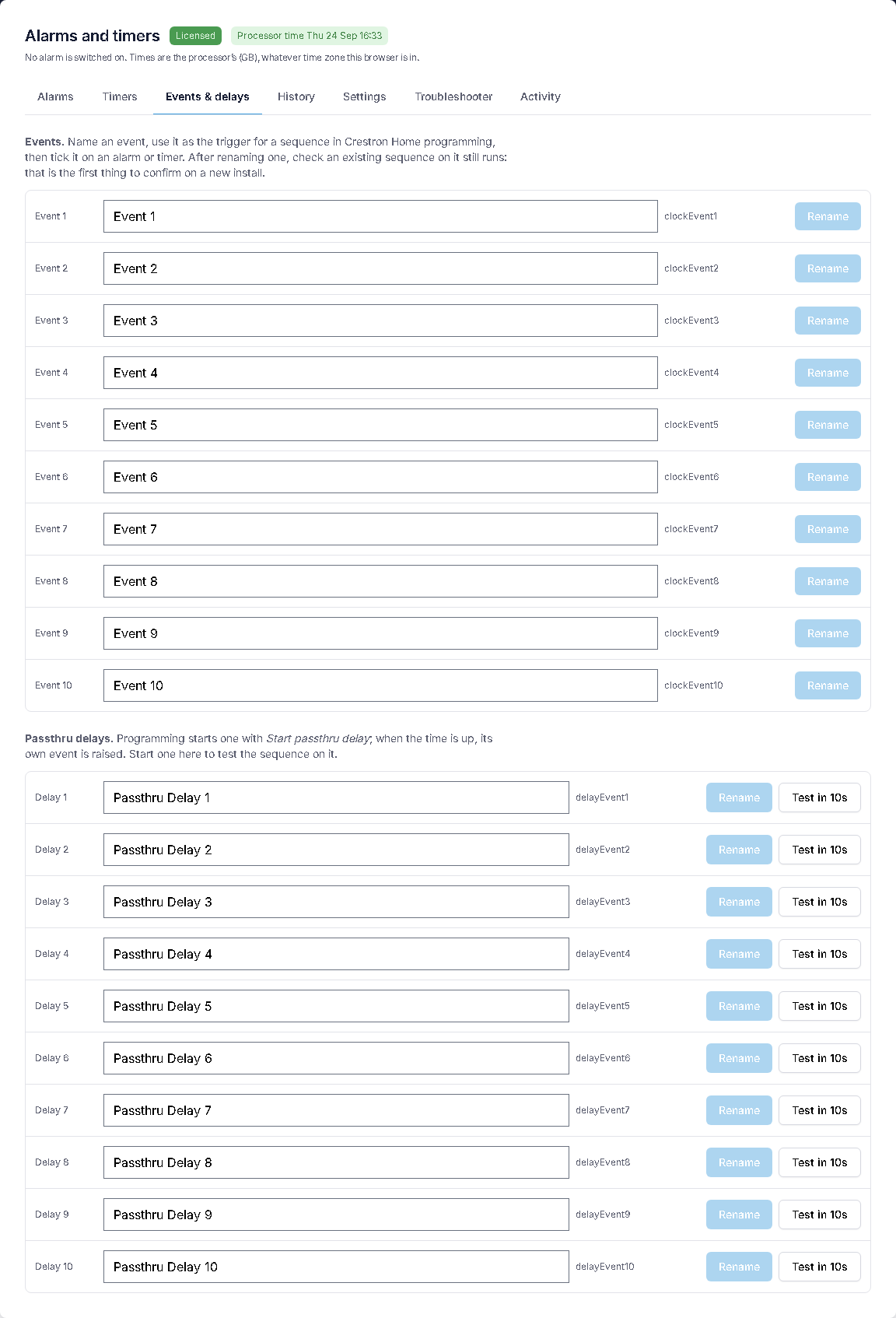
- Rename events on the panel (Event names) or in Alarms & Diagnostics → Events & delays. The new name shows in programming straight away.
- Unnamed events are called Event 1 to Event 10.
- After renaming an event, check that a sequence already using it still runs.
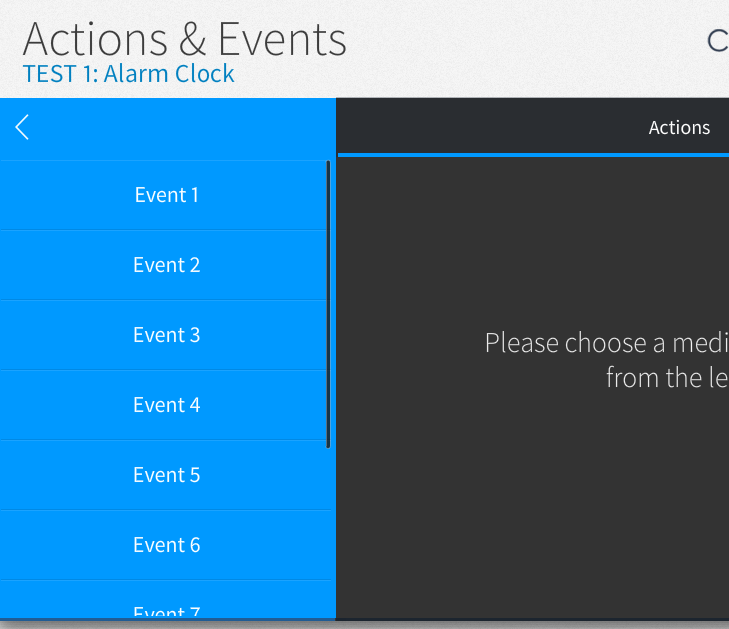
In Crestron Home programming, the driver's events are listed under the Alarm Clock device on the Actions & Events screen, ready to use as triggers:
Passthru delays
A passthru delay is a countdown that programming starts. When it runs out, the delay raises its own event. Use it for "20 minutes after the alarm, turn the heating down" without writing a timer yourself.
The driver has ten delays, named Passthru Delay 1 to Passthru Delay 10 until you rename them.
| Command | Parameters | What it does |
|---|---|---|
startDelay | delayNumber 1–10, hours, minutes, seconds | Starts that delay. Starting a running delay restarts it. |
cancelDelay | delayNumber 1–10 | Stops a running delay without raising its event. |
renameDelay | delayNumber 1–10, name | Renames that delay's event. |
Add these to any sequence, scene or quick action. The delay's event then appears as a trigger, under the name you gave it.
To check the programming on a delay without waiting, press Test in 10s next to it in Alarms & Diagnostics → Events & delays. The delay's event is raised ten seconds later.
The programming commands and the actions an alarm or timer runs need a valid licence. Without one, the driver logs the command and does nothing.
Restarts and power cuts
Running delays are saved with the alarms and timers, and carry on after a restart. A delay that ran out while the processor was off is recorded as Missed in the history, and its event isn't raised late.