Using the Alarm Clock in the Crestron Home app
This is what the homeowner sees. Everything here is done from the Crestron Home app, on a touch panel, phone or tablet. Hand this page to the customer, or use it to walk them through at handover.
The tile
The Alarm Clock tile carries the name the installer gave the device, such as Alarm. Under the name it shows Next 07:00 when an alarm is due in the next 24 hours, and the time otherwise. Tap it to open the Alarm Clock.
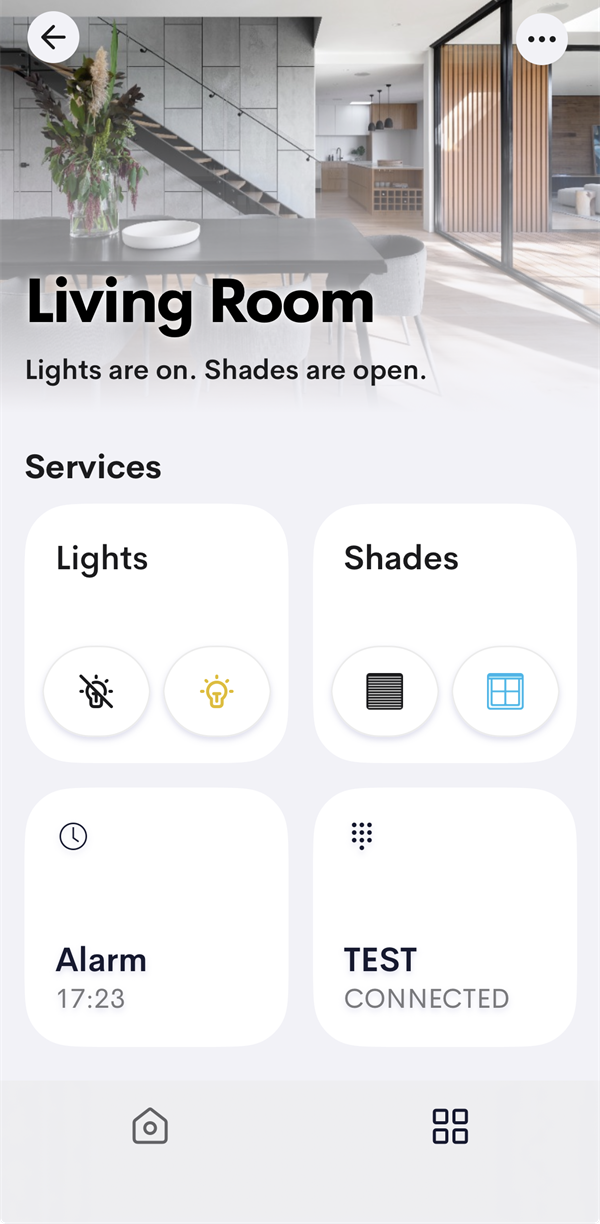
The installer chooses whether the tile appears on the Home page, the room page, or both.
Alarms and Timers
The first page lists every alarm and timer. Tap one to open it.
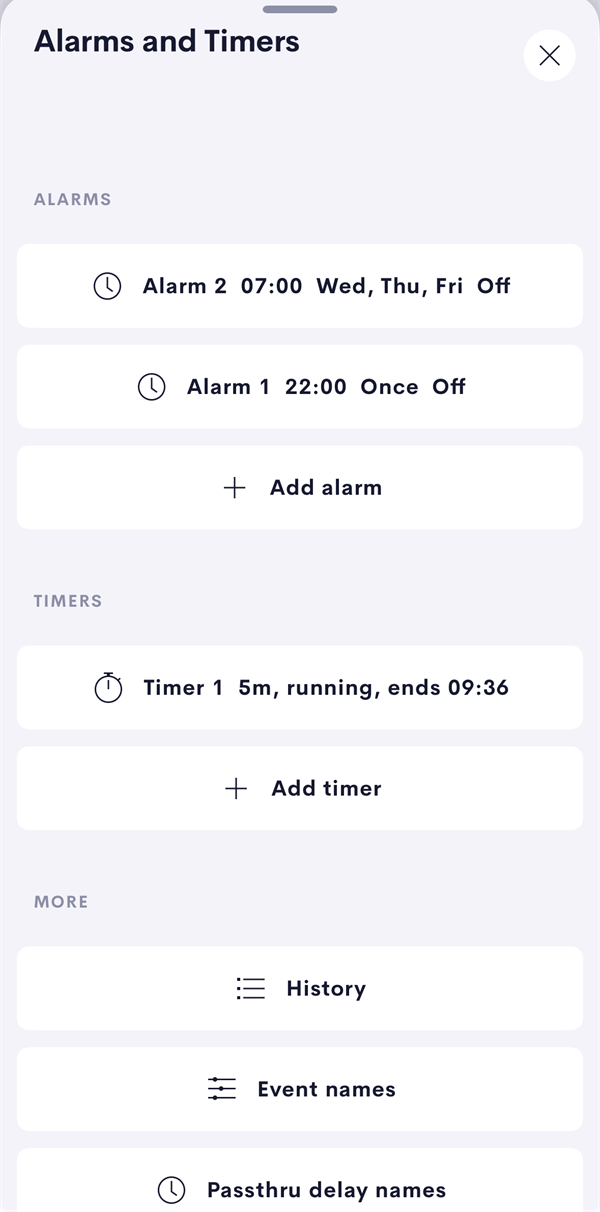
- Add alarm and Add timer create a new one and open it.
- Under More: History, Event names and Passthru delay names.
Setting an alarm
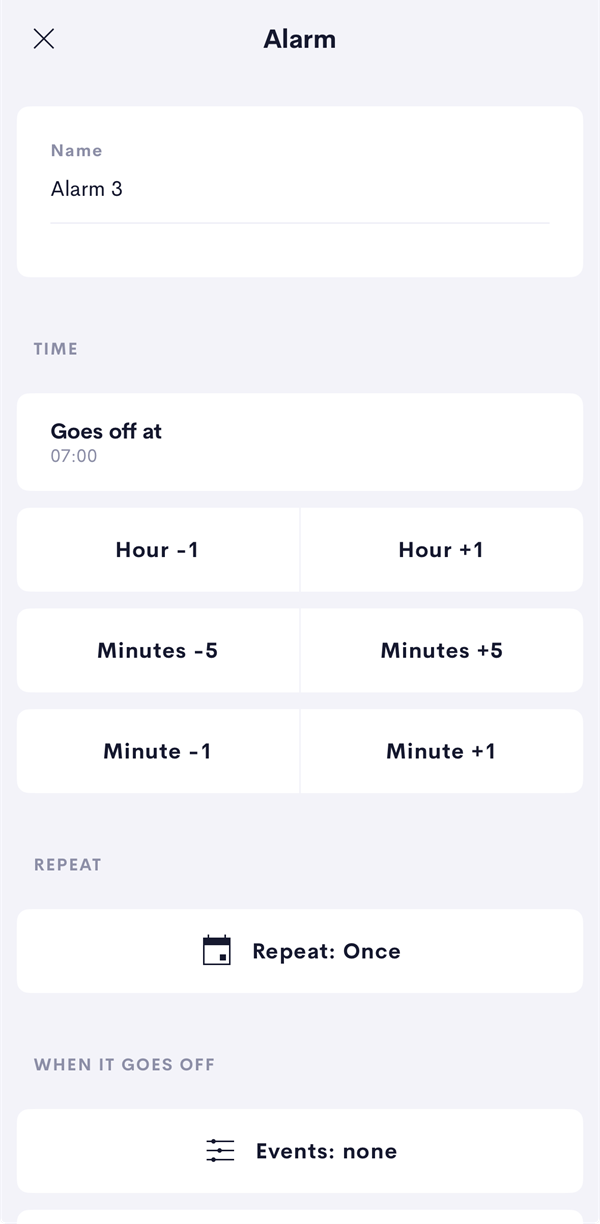
- Name: tap to type a name, such as "Wake up".
- Time: set it with Hour -1 / Hour +1, Minutes -5 / Minutes +5 and Minute -1 / Minute +1. Goes off at shows the result.
- Repeat: tap the Repeat: line and tick the days. Once only (no repeat) clears them all: the alarm then goes off once and switches itself off. Press Done.
- When it goes off: tap Events:, Lighting: or Chime: to choose what happens (see below).
- On or off: tick Alarm on. The line beside it says when it will next go off.
Run it now does what the alarm does straight away, as a check. Delete alarm asks you to confirm first.
What happens when it goes off
Each alarm and timer can do any combination of these.
Events. Tick the events to raise and press Done. Your installer uses events to run Crestron Home programming: lights, blinds, music. Event names are set on the Event names page.
Lighting scene. Pick a scene from the list, or No lighting scene. Reload scenes fetches the list again if a new scene is missing.
Sonos chime. Pick a chime, or No chime. This needs the LCD Sonos Chime driver; without it the list is empty.
Setting a timer
- Name: tap to type one, such as "Pasta".
- Length: set it with Hours -1 / Hours +1, Minutes -1 / Minutes +1 and Seconds -5 / Seconds +5.
- When it goes off: choose events, a lighting scene and a chime, as for an alarm.
- Press Start. While it runs, the button reads Restart, and pressing it starts the timer again from the full length. Cancel stops it.
Delete timer asks you to confirm first.
History
Most recent first: what went off, what it did, and anything Missed while the processor was off.
Event and delay names
Event names and Passthru delay names let you rename the ten events and ten delays. The names show up in Crestron Home programming straight away, so agree them with your installer before changing them.